Background
It’s no secret that the Windows ecosystem appears to be struggling. Every Windows update introduces more useless bloat while simultaneously breaking existing features. Basic UI elements no longer serve their intended purpose – A Start menu that can’t start or find anything useful, control panels with overlapping controls, and a new right-click menu complete with the old right-click menu. It’s a frustrating experience.
Of course there’s also the privacy concerns, like the continued push to force online accounts and the recent revelations around the Global Device Identifier (GDID) and associated telemetry collection. It’s not looking good for Microsoft.
After years of supporting Windows Server and Desktop infrastructure, I finally found myself in a situation where I no longer had to daily drive Microsoft-based systems.
Around this same time, Microsoft began the push to phase out Windows 10 with the TPM requirement for upgrading to Windows 11. I had one system used as a TV PC that wouldn’t be upgradable but was perfectly suited for its purpose. Little did I know that this single system would lead to my complete migration away from Windows…and now I can’t imagine ever going back.
This post is a collection of tips, lessons learned, and commands I’ve gathered along the way.
Requirements
To ensure I wouldn’t find myself in the same situation again, I wanted to make sure to have a general list of what would be my essentials from a desktop OS:
- Reliable – Must survive regular updates.
- Simple & Flexible – Spend more time using it than working on it, but have the ability to fix what I dislike.
- Diverse Hardware Support – Compatibility with a wide range of hardware, from Dell XPS laptops to custom gaming desktops, GPUs and DACs.
- Office & OneNote – Open to viable alternatives.
- Music & Video Playback – Streaming services & local support (FLAC, MP3, MP4, MKV).
- Virtual Machines – Type 2 hypervisor support.
- Text Editors/IDEs – Notepad++, vsCode – Very open to alternatives.
- Gaming – Steam support.
- Video Editing/Screen Capture – Mainly 1080p but 4k support would be nice.
- Network Shares – Existing setup used Windows Servers.
- Miscellaneous Software Requirements – Specific Java Versions for BMC/iDRAC, bootable ISO tools, remote access tools.
Pretty basic, however in making this list, I began to realize how much I have shifted to relying on a browser/web applications in place of Windows applications.
Narrowing In On A Distribution
As a server administrator and security professional, I’ve encountered my fair share of Linux servers, and when given the choice, I generally gravitate towards Debian and Red Hat based distros. They’re easy to work with on the cli, excellent package support/management, and incredibly reliable.
I’ve also explored enough desktop environments to know that I prefer the look and feel of GNOME over KDE or XFCE.
Around this time, Omarchy (3.0) was gaining popularity, so I decided to give it a try since I had never experienced Arch or Hyprland.
Lessons Learned From Omarchy
Omarchy and Arch Linux in general are awesome, but ultimately, they weren’t for me. I found myself on the edge of the “Simple & Flexible” spectrum. You have the power and flexibility to fine-tune everything, but at the cost of experience and time.
However, all was not lost. The core concepts gained from working through the documentation to figure out how to use and navigate Omarchy were invaluable.
Key takeaways:
- Hot keys, hot keys, hot keys
- Limit searching the UI visually
- Minimizing/maximizing windows is slow
- Workspaces combined with hot keys are super effective
Omarchy made me feel like I was in control of my machine again, it felt so usable, zipping around with precision.
The down side became apparent during my own sloppy experimenting phase, installing and testing a ton of random packages led to me needing to reinstall multiple times on my Surface Pro test machine.
Debian With A Smidge Of Rice
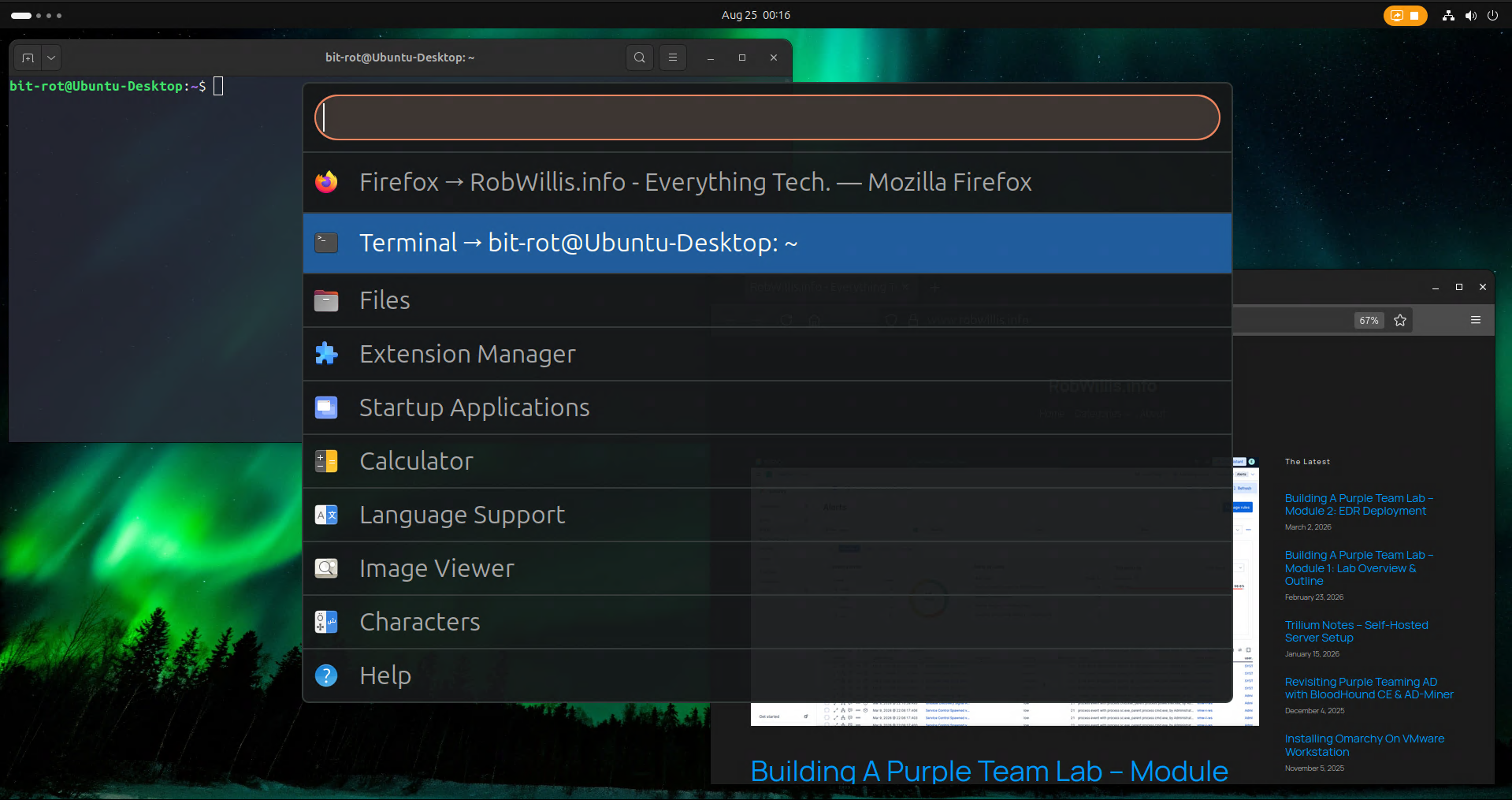
Ubuntu Desktop ended up being the distro of choice for all of my main hardware. I usually keep a few Kali Linux (Debian-based, GNOME optional) virtual machines around as well.
The tweaks described here should work on both operating systems.
My goal was to come up with a simple process to improve usability that could be easily applied across multiple machines.
Hot Keys
These settings are largely copied from Omarchy, there’s a little bit of a learning curve, but it’s well worth it.
You can find these options under Settings > Keyboard > Keyboard Shortcuts > View and Customize Shortcuts:
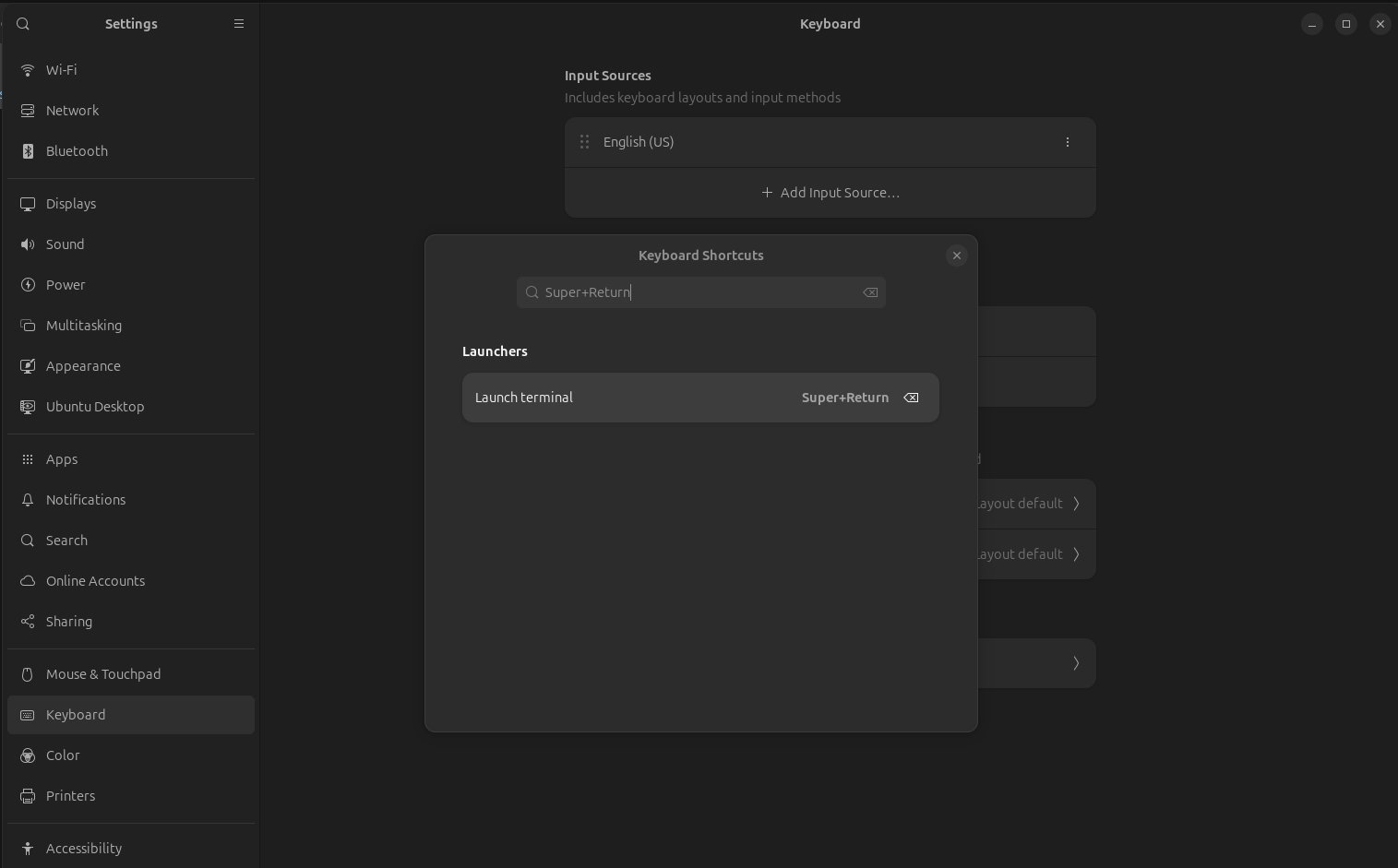
Most of these combos use the Super key, which is also known as the Windows or Command key.
Change/verify the following settings:
| Shortcut | Key Combination | Notes |
| Switch to next input source | Super+Space | Remove/disable this entry; will be reused later |
| Switch to workspace # | Super+1-4 | |
| Move window to workspace # | Shift+Super+1-4 | |
| Split window left/right | Super+Left/Right | Disable Ubuntu Desktop > Enhanced Tiling Popups |
| Switch applications | Super+Tab | |
| Switch windows | Alt+Tab | |
| Launch terminal | Super+Return |
Customizing GNOME With Extensions
Extensions are a great way to quickly and easily modify the user interface.
There are two main extensions that I use:
- Switcher – Application launcher/Start menu
- Just Perfection – UI Tweaks/Remove animations
Installation
The easiest way to get started with extensions is to install the GNOME Extension Manager:
$ sudo apt install gnome-shell-extension-manager
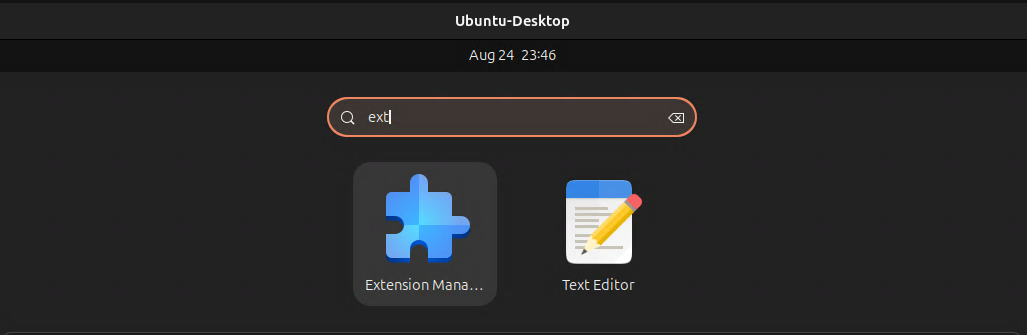
Access the manager from the Applications menu by searching for extension manager:
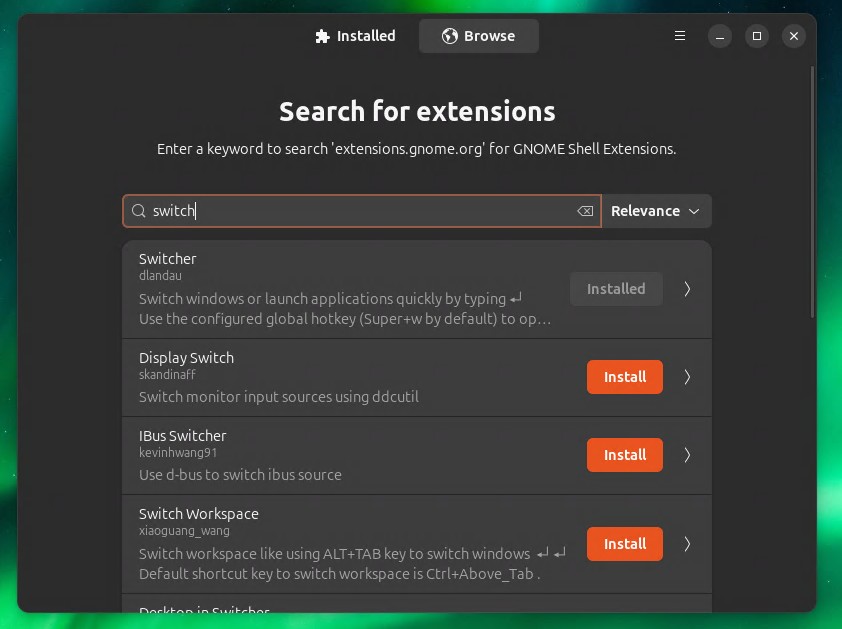
On the Browse tab, search for/install Switcher and Just Perfection:
Configuring Switcher
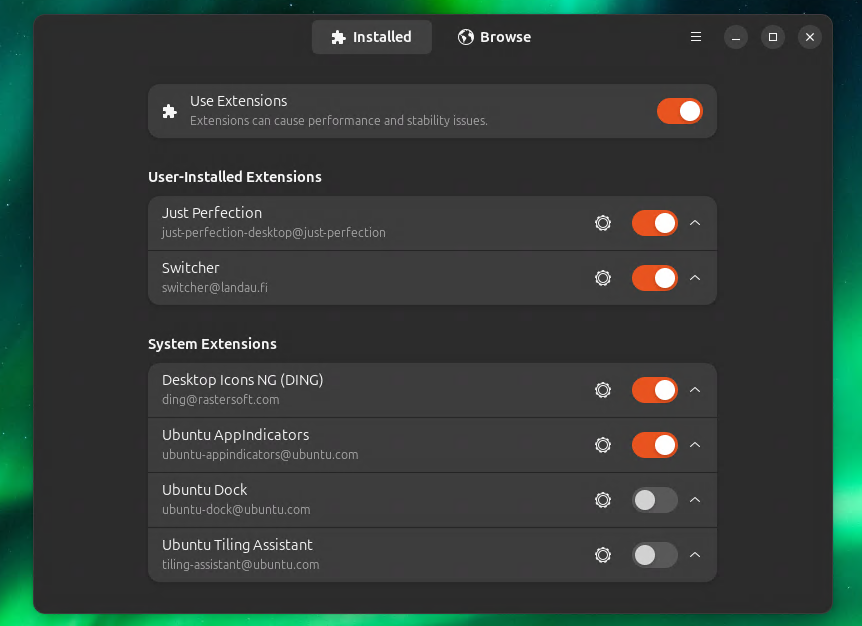
On the Installed tab, go to the preferences for Switcher:
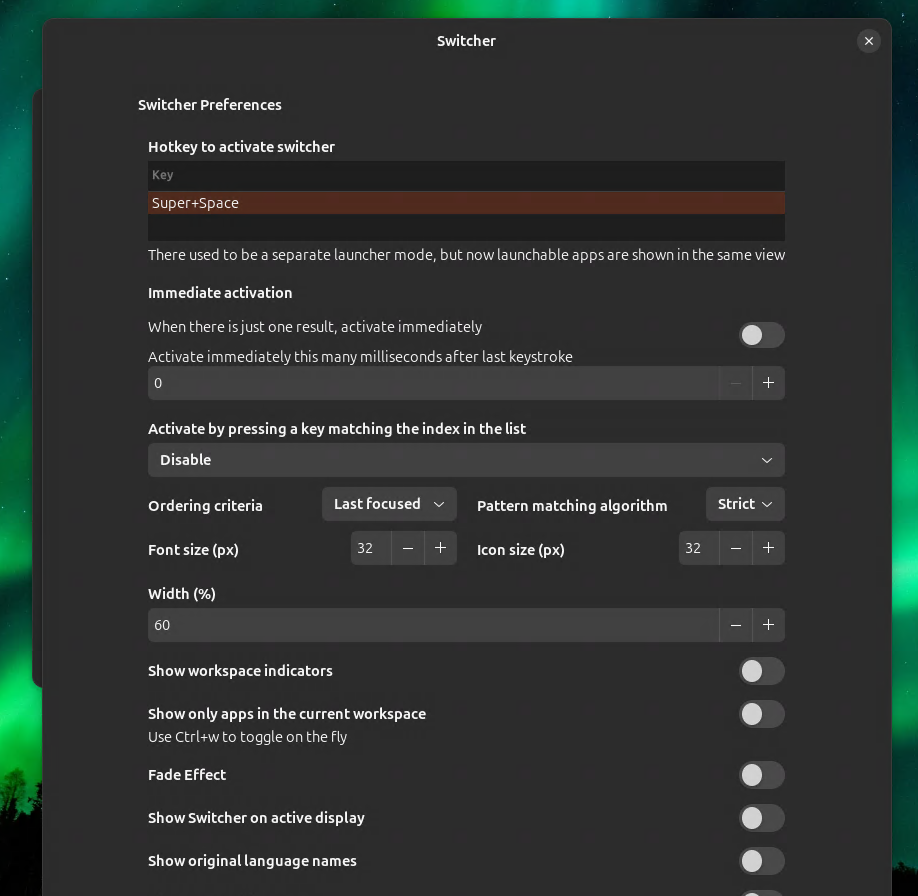
Bind the hot key to Super+Space:
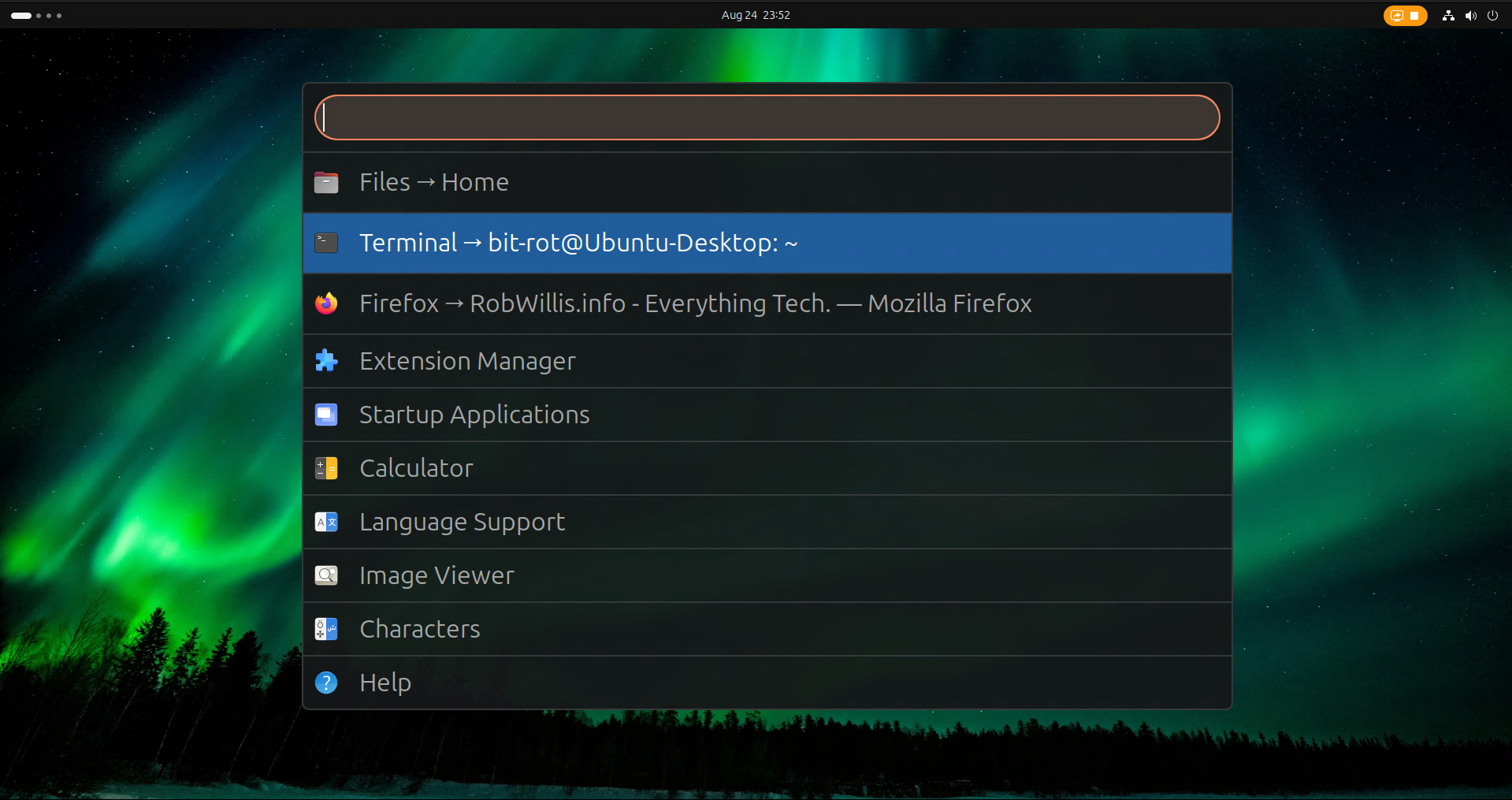
Try using Super+Space to access the application menu:
To further clean up the UI, you can remove the dock since its sort of redundant now:
$ gnome-extensions disable ubuntu-dock@ubuntu.com
Configuring Just Perfection
In the Extension Manager, go to the preferences for Just Perfection > Customize:
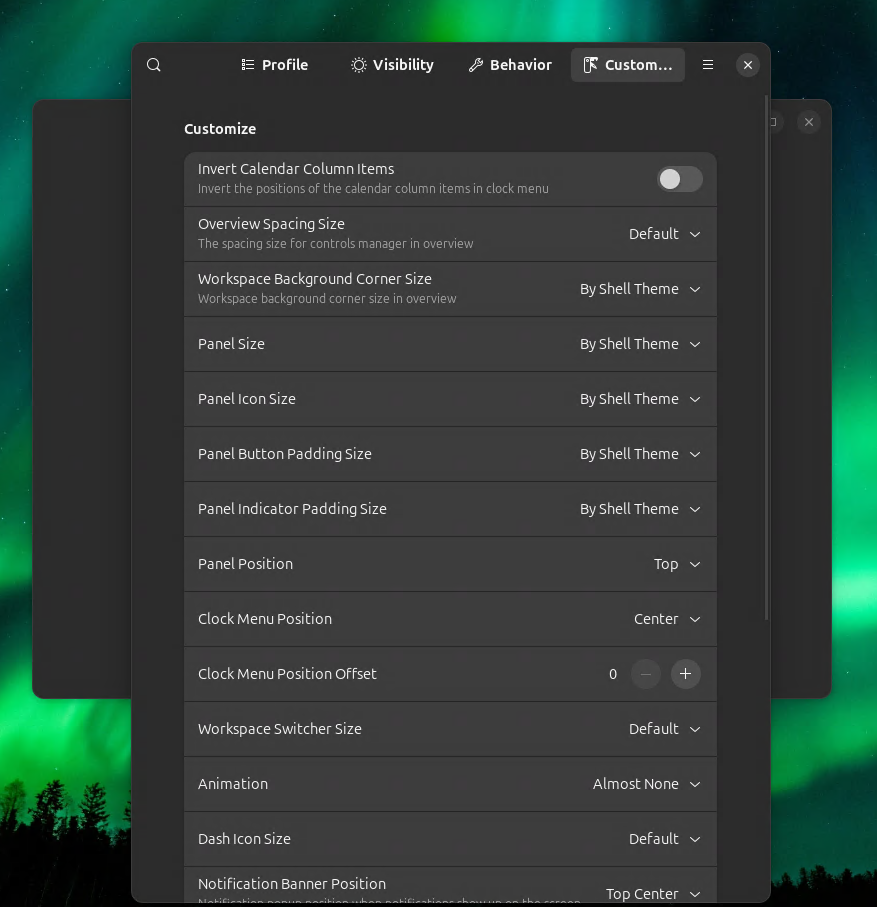
Change Animation to Almost None.
It’s a simple modification, but I love how snappy it makes everything feel.
Application Migration
The table below outlines the applications and solutions I migrated to, including any useful commands and notes.
| Category | Windows | Linux | Notes |
| Productivity | Office | LibreOffice |
|
| Text Editors/Notes | OneNote | Trilium Notes |
|
| Local Audio | Media Player | Strawberry |
|
| Local Video | VLC | VLC |
|
| Gaming | Steam | Steam |
|
| IDE | vsCode | PyCharm, vsCode |
|
| Virtual Machines | VMware Workstation | VMware Workstation | |
| Video Editing | Davinci Resolve | Davinci Resolve | |
| Screen Capture | OBS | OBS |
|
| Network Shares | Windows Servers | Migrated to TrueNAS Community | |
| Bootable ISO Tools | Rufus | BalenaEtcher | |
| Remote Desktop | mstsc.exe | xfreerdp |
|
| Terminal Multiplexer | tmux |
|
Issues
DRM & Browser Based Streaming
Digital Rights Management (DRM) is one area where Desktop Linux has limited support when compared to Windows. Depending on the type of DRM used by a particular service, you may find that browser-based streaming is completely broken or restricted to lower quality/resolution. I’ve found that most services generally work well, such as HBO Max and Paramount+.
It is worth noting that these limitations do not apply to devices like Amazon Fire Sticks due to their design, making these devices an appealing workaround for this particular problem. I actually use one of these specifically for Peacock.
DRM limitations also remove the HD functionality on Amazon Music. I thought this might be a deal-breaker, but after some research, I decided to cancel the subscription ($200/year) and began building my own “offline” collection by purchasing Hi-Res FLAC tracks from sites like Bandcamp. Another option I considered was switching to Tidal since Strawberry has support.
Hardware Support
I expected to run into some hardware related problems with my custom gaming builds, but almost everything worked out of the box, even my audio gear. It helps if host is connected to the internet while running through the ISO installer, this allows additional packages and firmwares to be downloaded as needed.
It’s funny because this might seem straight forward, why wouldn’t you run the installer while online? But with Windows, you had to avoid internet connectivity during installation because it would try to force you into an online/live account.
If you do encounter hardware compatibility issues, some basic online research will usually quickly reveal whether it’s worth pursuing a potential fix or if it’s time to look for a replacement.
This happened with my Dell XPS laptops and the Killer 1535 wifi. Everything appeared to be installed correctly, and I could connect initially, but then the network would drop every few minutes. A quick online search revealed this was a common problem with that card. This wasn’t surprising, as it was never great even with full Windows support. For $20, I swapped the Killer wifi for an Intel AX210 card and now it’s running better than ever.
It seems rare with modern Linux, but still be prepared to run into potential issues with obscure hardware, and know when to stop chasing a fix and simply replace the problematic component with something known to have better support.
Final Thoughts
It’s been over six months now and there hasn’t been a single thing that I haven’t been able to replace or replicate on Linux and I would even go so far as to say that many of the replacements I found actually brought additional quality-of-life improvements. The GUI is so lean and fast. It’s been a much more enjoyable experience.
I wish I had done this sooner. I guess part of me was worried running Linux with a wide array of desktop applications would lead to an endless struggle, but it really hasn’t been that bad. In fact, Linux is probably more verbose and less cryptic when stuff does go wrong.
Terminal vs Terminal
I was always a huge fan of PowerShell and spent a lot of time learning and developing with it, so I wanted to give the Linux terminal and Bash the same respect.
I highly recommend reading the entire Linux Command Line Book, which is actually available for free download:
https://linuxcommand.org/tlcl.php
I don’t want to bash PowerShell (and PS Remoting), there were a lot of really good ideas there, but there were so many times where it just felt more complicated than it needed to be. This got worse as PowerShell got older.
The Linux terminal, Bash and SSH have a way of being simple and consistent to use but powerful in the way that there’s a tool for almost every situation. Writing shell scripts in PyCharm has been very welcoming. Plus native terminal tabbing and then tmux, it’s like a whole new world.
Gaming
Gaming on Ubuntu with Steam has been excellent. I don’t game much, but I’ve played through titles like Half-Life 2, Metro Exodus, Ride 4, and Far Cry 5 on a 3080 Ti at 1080p with mostly maxed settings – consistently achieving 60+ fps. Everything works and runs just as well as it did when running Windows on the same hardware. Valve has really done some impressive work here.
The performance mode switcher in the status bar is very convenient and functions well. My Alienware laptop can get quite loud, and with Windows, the fans ran at full speed even when idle. With Ubuntu, the system runs beautifully on balanced, remaining whisper-quiet, and then the performance mode is a nice option for gaming.